![Logotype-primary (1).png]](https://knowledgebase.getvim.com/hs-fs/hubfs/Knowledge%20Base/Logotype-primary%20(1).png?height=50&name=Logotype-primary%20(1).png)
Step 1: Update your Advanced Settings
Enable the Clinical Data Exchange (CDE) application at the organization level in Console.
- Log in to Vim Console

- Go to the Account tab in the top left corner
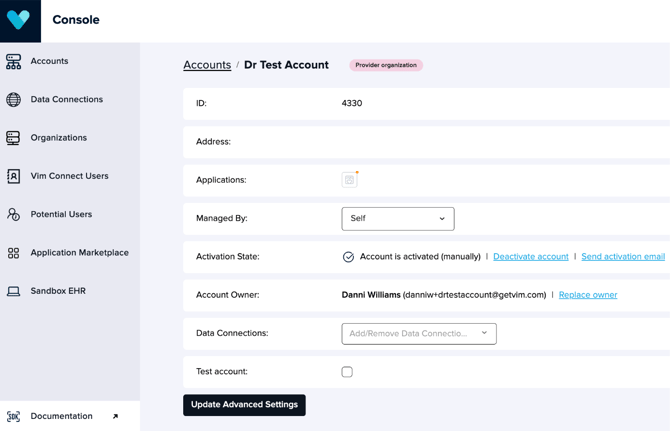
- Update Advanced Settings
- Toggle Enable Clinical Data Exchange and enter the Clinical Data Exchange Admin's email address for notifications. A single email address is required, this should belong to the primary CDE user (typically HIM or clinical operations staff).
- (Preferred) You can also choose to Activate Clinical Data Exchange for all users. If you select this you don't have to add the app to the Vim Connect User
- Click Save
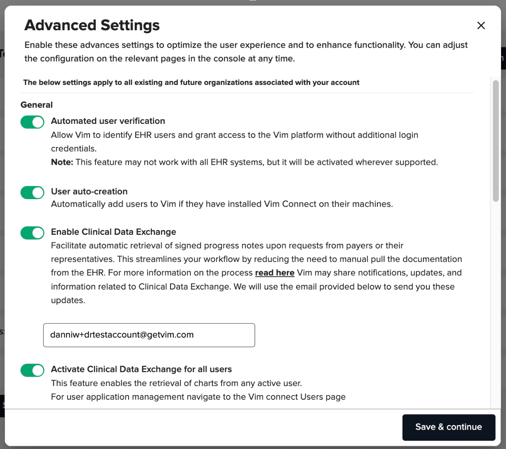
Please note: If you do not select add to all users, after enabling CDE in Advanced Settings, you must also add the application to specific Vim Connect Users:
- Go to the Vim Connect Users tab
- Click the check box to the left of next to the user(s) who should have CDE access.
- Select the Roles and applications button
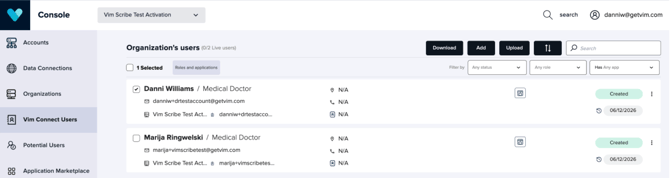
- In the Application section, add Clinical Data Exchange.
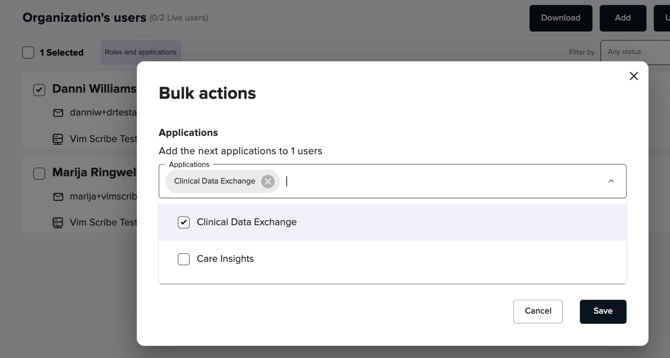
- Save