![Logotype-primary (1).png]](https://knowledgebase.getvim.com/hs-fs/hubfs/Knowledge%20Base/Logotype-primary%20(1).png?height=50&name=Logotype-primary%20(1).png)
If you're experiencing issues with remote deployment via GPO, follow the steps below to troubleshoot common problems and ensure Vim Connect installs smoothly.
The network shared folder is inaccessible from a workstation/the script is not running due to permission issues.
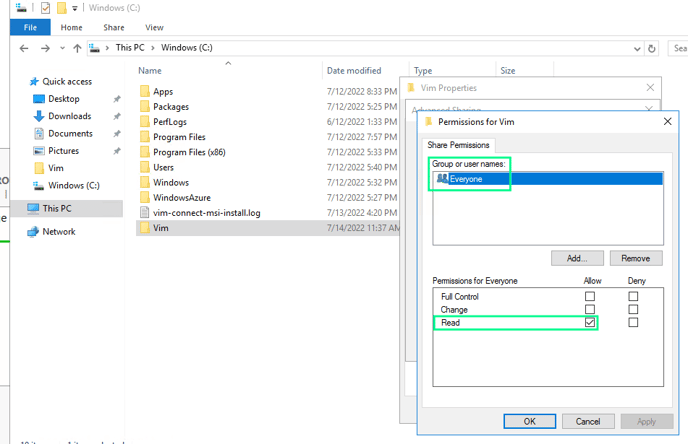
- Ensure the sharing permissions include “Everyone” and it has only read permissions
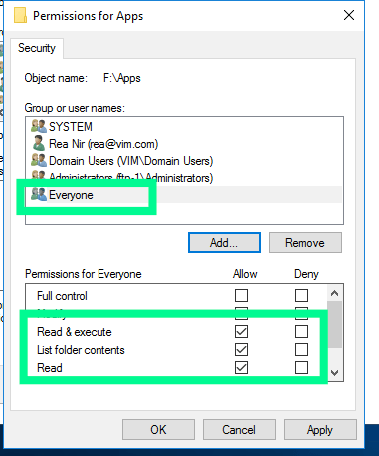
- Ensure the security permissions for the shared folder include "Everyone" and that "Read & execute," "List folder contents," and "Read" permissions are allowed.
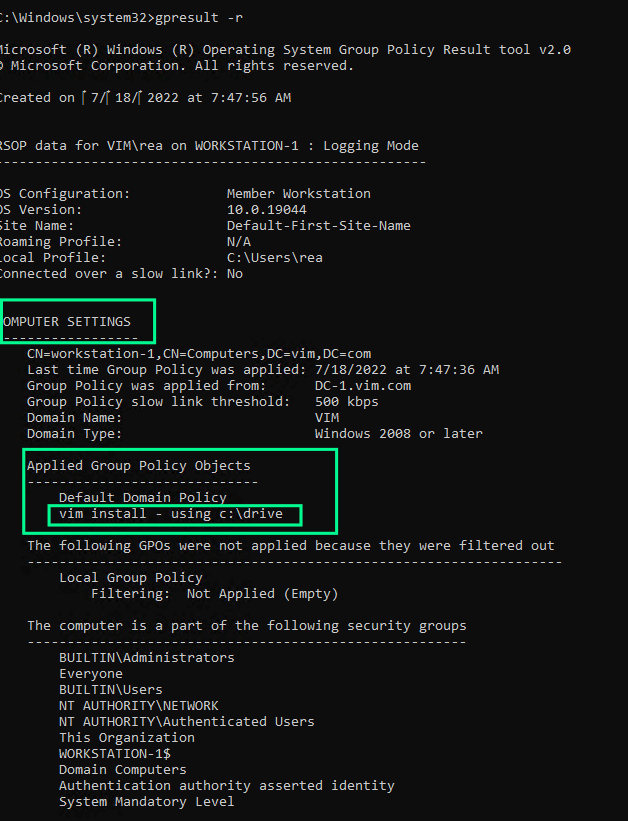
The GPO does not appear in the list when running gpresults-r.
- On the workstation, open CMD as admin and run gpresult -r (this will show which GPOs applied after running gpupdate /force). Notice the output under COMPUTER SETTINGS, if you do not see the GPO you created listed there, then it might mean that the GPO was not applied domain-wide on not under the right OU.
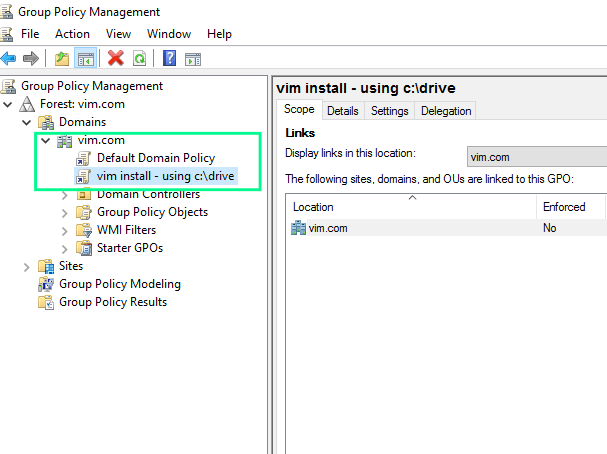
- Make sure you applied the policy to the right OU, or if you want to apply the policy domain-wide, make sure you applied the policy right under the default.
The scheduled task is not running or not being created.
- Make sure you set the task to run as NT AUTHORITY\SYSTEM user
- Double check that the GPO is linked correctly (domain-wide or applied to the right OU)
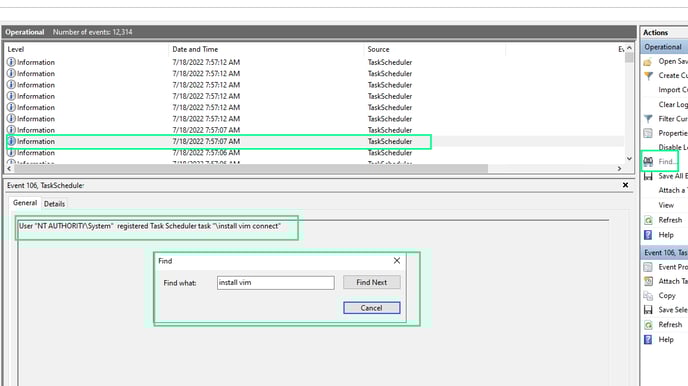
- To verify that the scheduled task was created and launched, open Event Viewer on the workstation and navigate to Applications and Services Logs → Microsoft → Windows → TaskScheduler → Operational
- Click Find then type the name of the scheduled task you configured while configuring the GPO
- You should now see find some logs about the task, go through them and see if you find a log that states: “The NT AUTHORITY\System” registered Task Scheduler task “\task name” (as in the picture below)
Note: After the MSI gets installed, It will generate an installation log called vim-connect-msi-install.log on your C:\ drive (“C:\vim-connect-msi-install.log“) You can check it for any errors. If the log is not present, it could indicate an issue with the deployment.