![Logotype-primary (1).png]](https://knowledgebase.getvim.com/hs-fs/hubfs/Knowledge%20Base/Logotype-primary%20(1).png?height=50&name=Logotype-primary%20(1).png)
If you're experiencing issues with Vim Connect, follow the steps below to resolve the most common problems and get Vim Connect running smoothly.
Vim Connect Icon Is Not Visible in the Windows Application Tray
- Open the Windows Start Menu.
- Search for Vim Connect.
- Click the icon to launch the application.
Vim Connect for eCW Appears in Chrome but Not in the Plug-In
- Close all instances of eClinicalWorks (eCW) and fully exit Chrome.
- In the Windows application tray, locate the Vim Connect icon.
- Right-click the icon and select Exit.
- Relaunch Vim Connect from the Windows Start Menu or search bar.
.png?width=688&height=289&name=Screenshot%202024-10-31%20at%2012.08.31%20PM%20(1).png)
- Ensure Vim's Chrome extension is pinned to Chrome.
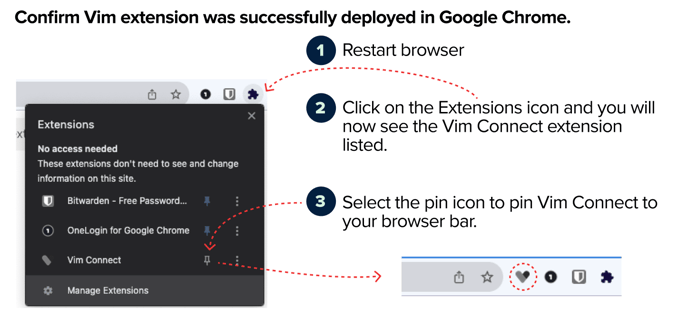
- Wait 20 seconds, then try logging into the eCW plug-in again.
- If the issue persists, verify the plug-in’s target URL:
- Right-click the eCW plug-in icon.
- Select Properties.
- Under the Shortcut tab, find the Target field.
- Make sure the listed URL matches the organization’s URL in Vim Console (starts with https://...).
Vim Connect Extension Is Not Visible in Chrome
- Fully close Chrome.
- Check if Vim Connect MSI is installed:
- Search for Vim Connect in the Windows search bar, or look for the icon in the application tray.
- If it’s running in the tray, right-click and select Exit.
- Relaunch Vim Connect from the Windows Start Menu.
- Wait 20 seconds, then reopen Chrome.
- If the issue continues:
- Download and reinstall the latest Vim Connect MSI from the appropriate link.
- You do not need to uninstall the previous version.
- After installation, close and reopen Chrome.
Overlay Is Visible for Some Users but Not Others
- Log into Vim Console.
- Locate the organization and verify that the user is added correctly.
- If needed, remove and re-add the user.
- Ask the user to log out and back into the EHR.
Vim Connect Extension Is Installed in Chrome but Labeled “Disabled”
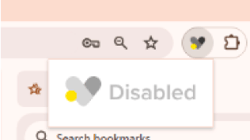
- Verify the EHR Username
- Locate the user’s EHR username (this is the username used to log into the EHR).
- In Console, go to the Users tab.
- Check that the EHR username listed in Console exactly matches the one the user is logging in with.
- If it doesn’t match, have the Console account admin or owner update the user’s EHR username in Console.
- Verify the EHR URL
- In Console, go to the Organization page.
- Confirm that the EHR URL matches the one the user is logging in with.
- If not, have the Console account admin or owner update the EHR URL in the organization settings.
- If Vim is installed via MSI:
- On the user’s workstation, open the system tray (bottom-right corner of the screen) and click the ^ icon.
- Right-click the Vim icon and select "Copy error log to clipboard."
- Look for key details in the error log:
{"device_id":"0cc45d7c-2759-423f-b611-14dad058bfa9","hostname":"WSAMZN-UD8CGQTO","username":"elodie","organizationKey":"kmSp1FxkEv3W1fxBiZKW3u"}
-
Compare Console Settings to the Error Log
-
Check whether the organization key in the log matches what’s listed for the organization in Console.
-
If it does not match, the user must:
-
Completely uninstall the Vim MSI from their device.
-
Reinstall it using the correct organization key from Console.
-
-
-
Error Message During MSI Installation
- Make sure the user is installing the latest version of the MSI:
- eCW: vim.health/ecw_desktop
- Athena / Practice Fusion: vim.health/vim_connect
- Delete the vim-ehr-agent folder from the user's AppData directory:
- Open the Windows Search Bar, type %appdata%, and press Enter.
- Locate and delete the vim-ehr-agent folder.
- Delete the Vim Connect folder from C:\Program Files.
- Attempt the installation again.
- If the error continues:
- Ask the user to send the MSI installation log to support@getvim.com:
- Open the Windows Search Bar, type %temp%, and press Enter.
- Locate the most recent file titled MSI#####.LOG (a series of numbers and a letter at the end).
- Ask the user to send the MSI installation log to support@getvim.com: